Connect Contextick to Claude
Contextick is in Claude's connector directory, so connecting it is a search and a click — on any plan, the free one included. Everything happens in Claude's own settings and you sign in with Google, so there's no API key to copy and no config file to edit.
What you'll need
- Any Claude plan — Free, Pro, Max, Team, or Enterprise. The connector directory is there on every plan, and there's nothing to apply for.
- Claude on the web or the desktop app. Set it up once on a computer; after that it's connected everywhere you use Claude.
- On Team or Enterprise, an owner manages connectors for the organization. Once they've added Contextick, it appears for everyone.
- A Contextick account. You'll sign in with Google during the connection, so no API key is needed.
Steps
- Open Contextick's listing in Claude's connector directory — this link goes straight to it. You can also get there from Settings → Connectors in Claude and search for Contextick.
- Choose Connect to Claude. On a Team or Enterprise account the button reads
Connect for your team instead — that's the owner adding it for everyone.
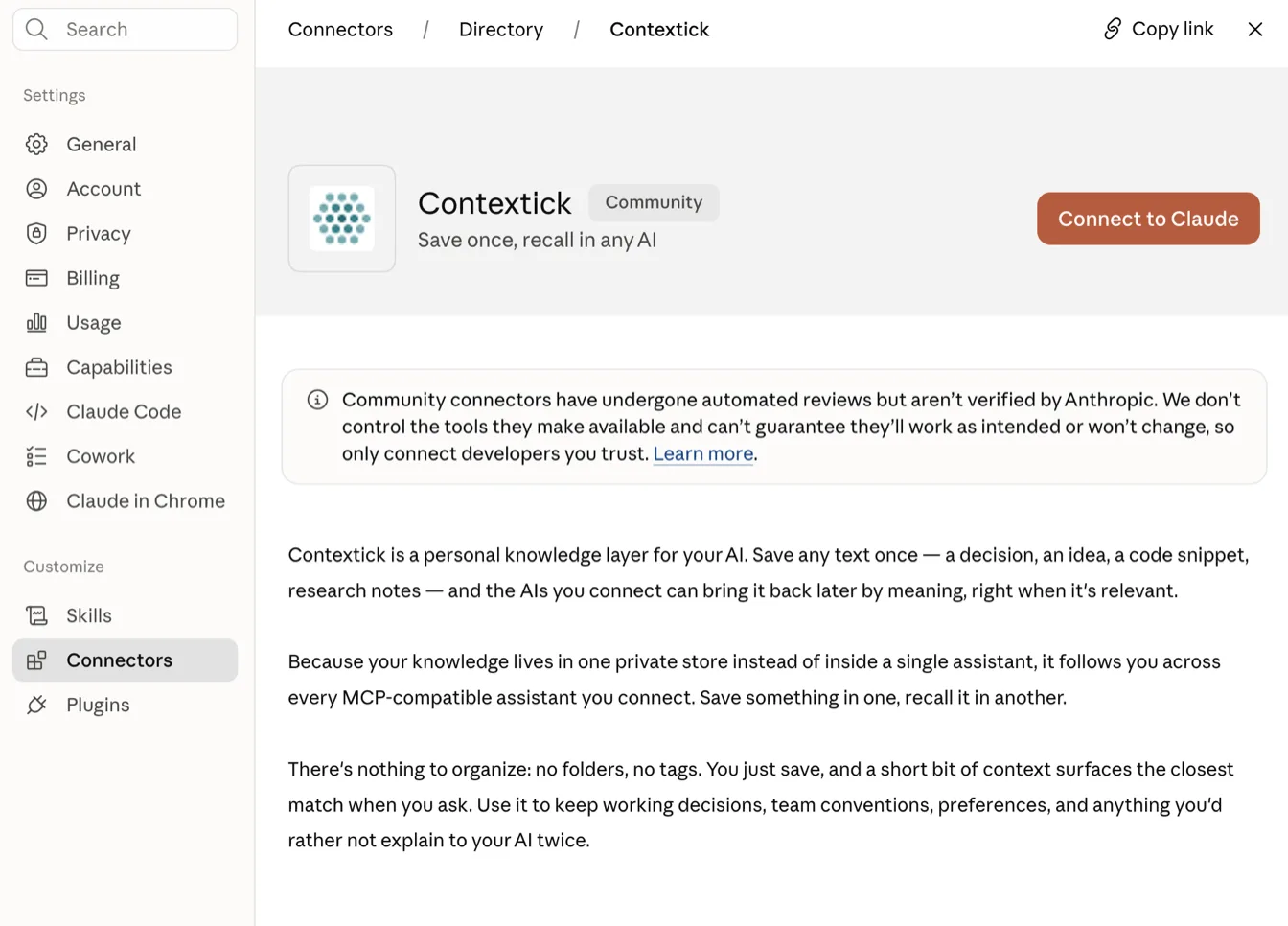
- Claude opens a Contextick window — sign in with Google and approve access. That approval is what links the connector to your knowledge — nothing to paste, nothing to copy.
- Contextick is now listed under Settings → Connectors. Claude asks permission the first time it uses each Contextick tool.
Check it worked
Test it in two parts, and make the second part a new chat. If you ask in the same conversation, Claude can answer from what you just said without ever calling Contextick — so a broken connection would still look like it worked.
- Save something you'd actually want back. At the end of a conversation where you worked something out, say: "Save what we landed on for the kitchen renovation budget to Contextick." Claude asks permission the first time it uses the tool — allow it.
- Open a new chat and ask: "What did we land on for the kitchen renovation budget?"
If it comes back in the new chat, you're connected — and you've just seen the point of it: you didn't have to explain any of it again. Everything you save is available in any other AI you connect to Contextick.
If it doesn't show up
- You can't find Contextick in the directory. The directory itself is on every plan, but on Team or Enterprise an owner decides which connectors the organization gets — if the button is greyed out or says an admin disabled it, that's who to ask. You do not need to upgrade your plan.
- The sign-in window closed without connecting. Check that pop-ups aren't blocked for claude.ai, then try again.
- Claude never uses Contextick. Ask it directly — "save this to Contextick" — and allow the permission prompt the first time.
Official docs
Claude's own guide, which covers connector settings in more detail: Use connectors to extend Claude's capabilities. Claude's connector features are still evolving, so if a screen here doesn't match what you see, their docs are the place to check.